# Usage in Athenic AI
#### AI Analyst (Chat)
Athenic AI can answer questions in two modes: **Metrics** (recommended) or **SQL**. Users can choose the mode from the dropdown next to the chat input.
The mode selection is on a per chat basis. A chat is locked to the mode you used for the first question:
* After you send your first question, the **SQL / Metrics dropdown is disabled** for that chat.
* To switch modes, start a **new chat** and choose the other option.
### **Metrics (default)**
Metrics mode uses the Governed Metrics configured by your team admin so results are computed using your defined semantic models, metrics, and dimensions.
When you ask a question, Athenic shows an **AI Interpretation** of the request as structured query parts, including:
* **Metrics**
* **Filters**
* **Group By**
* **Time Grain**
* **Date Range**
* **Order By** and **Limit** (when relevant)
The image shows a proposed metric generated by Athenic based on the user's question.
You can then:
* Click **Edit** to adjust the proposed metrics, filters, grouping, or time settings
* Click **Confirm** to run the query and **View Results**
This mode is best when you want consistent, governed definitions (e.g., revenue, units, active users) and reusable analysis patterns. For non-technical users, this is how they can ask questions and be confident they are getting what they asked for.
**AI Generated Metric / Advanced Dimension**
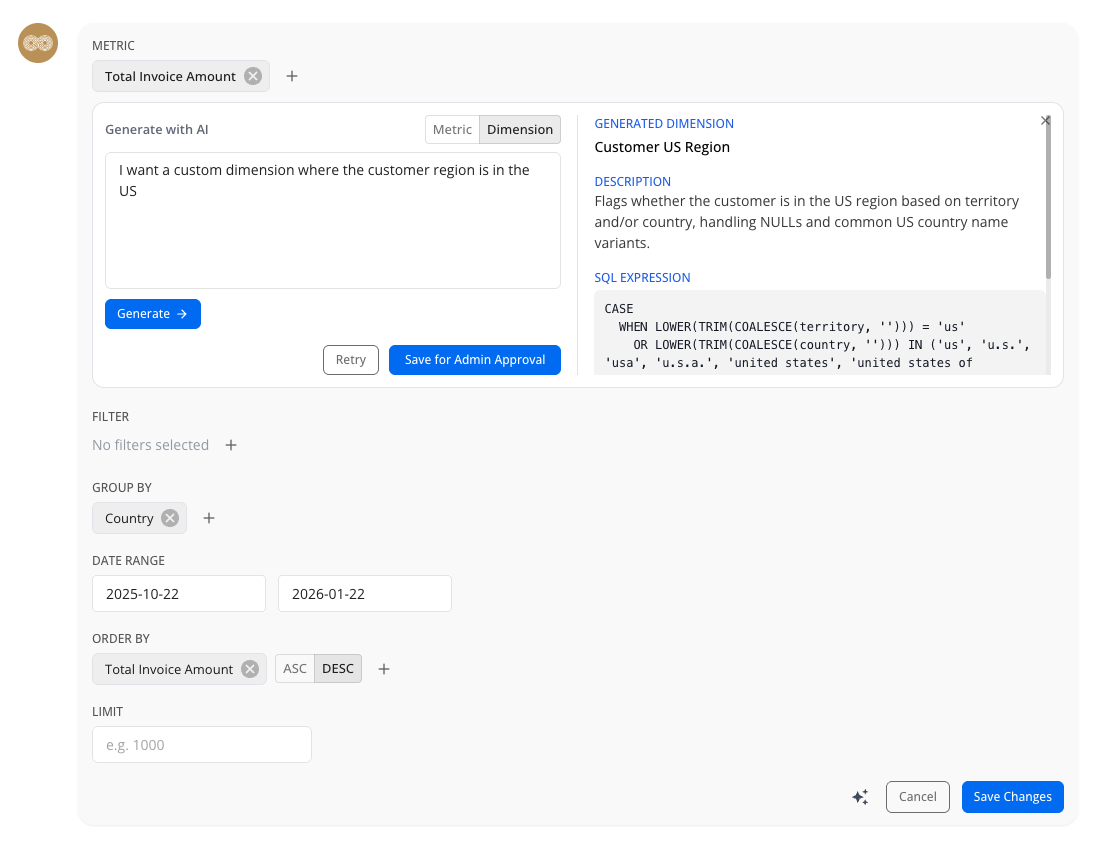
If Athenic AI can’t find an existing metric or dimension that matches your question, you can ask it to create a new one directly from the **Edit** panel.
**How it works**
1. Open **Edit** on the AI Interpretation.
2. Click on the AI Icon next to the Cancel button.
3. Toggle between **Metric** or **Dimension** depending on what you are trying to add.
4. Describe what you want in plain language (e.g., a metric for “Gross margin % = (revenue - cost) / revenue” or a dimension for “Customer region = US".
5. Athenic generates a **draft** metric or advanced dimension and will show you the description and generated logic.
6. Once you save the draft, you can add it to your query via the editor.
Athenic will scan your semantic models to generate metrics or advanced dimensions based on user input.
**Quarantined (Draft) Items**
* AI-generated metrics/dimensions appear **in orange** and are labeled **Quarantined**.
* Quarantined items require **admin approval** before they become part of your shared semantic layer.
**After Approval**
Once an admin approves the draft, it becomes a normal governed metric/dimension and will appear and behave like any other metric or dimension throughout Athenic.
### **SQL**
SQL mode generates SQL using your knowledge graph setup. It does not include the structured interpretation blocks (metrics/filters/group by) and you work directly in SQL.
Use SQL mode when you need full control over the query or exploratory custom logic that are not covered by Governed Metrics.